Couchbase Docker image is published at hub.docker.com/_/couchbase. The easiest way to start this image is:
docker run -d -p 8091:8091 couchbase/server
8091 is the network port used by Couchbase Web Console for REST traffic. Complete set of ports are documented at Couchbase Network Configuration. This image can be configured using Single Host Single Container configuration as explained at hub.docker.com/_/couchbase.
This blog will show you can create a single node Couchbase cluster using Docker, configure it with Data, Index, and Query service, load a sample bucket, and query it.
Start Couchbase Docker Container
Start Couchbase Docker Container using the following docker-compose.yml:
mycouchbase:
  name: mycouchbase
  image: couchbase/server
  volumes:
    - ~/couchbase:/opt/couchbase/var
  ports:
    - 8091:8091
    - 8092:8092
    - 8093:8093
    - 11210:11210
This Docker Compose file can be downloaded from github.com/arun-gupta/docker-images/tree/master/couchbase-server.
The container can be started as:
docker-compose up -d
Creating couchbaseserver_mycouchbase_1
Status of the running container can be seen as:
docker-compose ps
           Name                       Command                       State                        Ports
-----------------------------------------------------------------------------------------------------------------
couchbaseserver_mycouchbas   /entrypoint.sh couchbase-s   Up                           11207/tcp,
e_1                          ...                                                       0.0.0.0:11210->11210/tcp,
                                                                                       11211/tcp, 18091/tcp,
                                                                                       18092/tcp,
                                                                                       0.0.0.0:8091->8091/tcp,
                                                                                       0.0.0.0:8092->8092/tcp,
                                                                                       0.0.0.0:8093->8093/tcp
Logs can be seen as:
docker-compose logs
Attaching to couchbaseserver_mycouchbase_1
mycouchbase_1 | Starting Couchbase Server -- Web UI available at http://<ip>:8091
Configure Couchbase Docker Container
- Get IP address of the Docker Host:
docker-machine ip default
192.168.99.100
Use this IP address in all the subsequent commands. - Configure memory for Data and Index services:
curl -v -X POST http://192.168.99.100:8091/pools/default -d memoryQuota=300 -d indexMemoryQuota=300
* Hostname was NOT found in DNS cache
*   Trying 192.168.99.100...
* Connected to 192.168.99.100 (192.168.99.100) port 8091 (#0)
> POST /pools/default HTTP/1.1
> User-Agent: curl/7.37.1
> Host: 192.168.99.100:8091
> Accept: */*
> Content-Length: 36
> Content-Type: application/x-www-form-urlencoded
>
* upload completely sent off: 36 out of 36 bytes
< HTTP/1.1 401 Unauthorized
< WWW-Authenticate: Basic realm="Couchbase Server Admin / REST"
* Server Couchbase Server is not blacklisted
< Server: Couchbase Server
< Pragma: no-cache
< Date: Wed, 25 Nov 2015 22:48:16 GMT
< Content-Length: 0
< Cache-Control: no-cache
<
* Connection #0 to host 192.168.99.100 left intact
- Configure Data, Query, and Index services:
curl -v http://192.168.99.100:8091/node/controller/setupServices -d 'services=kv%2Cn1ql%2Cindex'
* Hostname was NOT found in DNS cache
*   Trying 192.168.99.100...
* Connected to 192.168.99.100 (192.168.99.100) port 8091 (#0)
> POST /node/controller/setupServices HTTP/1.1
> User-Agent: curl/7.37.1
> Host: 192.168.99.100:8091
> Accept: */*
> Content-Length: 26
> Content-Type: application/x-www-form-urlencoded
>
* upload completely sent off: 26 out of 26 bytes
< HTTP/1.1 200 OK
* Server Couchbase Server is not blacklisted
< Server: Couchbase Server
< Pragma: no-cache
< Date: Wed, 25 Nov 2015 22:49:51 GMT
< Content-Length: 0
< Cache-Control: no-cache
<
* Connection #0 to host 192.168.99.100 left intact
- Setup credentials for the cluster:
curl -v -X POST http://192.168.99.100:8091/settings/web -d port=8091 -d username=Administrator -d password=password
* Hostname was NOT found in DNS cache
*   Trying 192.168.99.100...
* Connected to 192.168.99.100 (192.168.99.100) port 8091 (#0)
> POST /settings/web HTTP/1.1
> User-Agent: curl/7.37.1
> Host: 192.168.99.100:8091
> Accept: */*
> Content-Length: 50
> Content-Type: application/x-www-form-urlencoded
>
* upload completely sent off: 50 out of 50 bytes
< HTTP/1.1 200 OK
* Server Couchbase Server is not blacklisted
< Server: Couchbase Server
< Pragma: no-cache
< Date: Wed, 25 Nov 2015 22:50:43 GMT
< Content-Type: application/json
< Content-Length: 44
< Cache-Control: no-cache
<
* Connection #0 to host 192.168.99.100 left intact
{"newBaseUri":"http://192.168.99.100:8091/"}
Install Couchbase Travel Sample Bucket
curl -v -u Administrator:password -X POST http://192.168.99.100:8091/sampleBuckets/install -d '["travel-sample"]'
* Hostname was NOT found in DNS cache
*   Trying 192.168.99.100...
* Connected to 192.168.99.100 (192.168.99.100) port 8091 (#0)
* Server auth using Basic with user 'Administrator'
> POST /sampleBuckets/install HTTP/1.1
> Authorization: Basic QWRtaW5pc3RyYXRvcjpwYXNzd29yZA==
> User-Agent: curl/7.37.1
> Host: 192.168.99.100:8091
> Accept: */*
> Content-Length: 17
> Content-Type: application/x-www-form-urlencoded
>
* upload completely sent off: 17 out of 17 bytes
< HTTP/1.1 202 Accepted
* Server Couchbase Server is not blacklisted
< Server: Couchbase Server
< Pragma: no-cache
< Date: Wed, 25 Nov 2015 22:51:51 GMT
< Content-Type: application/json
< Content-Length: 2
< Cache-Control: no-cache
<
* Connection #0 to host 192.168.99.100 left intact
[]
Query Couchbase Docker Container using CBQ
- List container id of Couchbase server:
docker ps
CONTAINER ID        IMAGE               COMMAND                  CREATED             STATUS              PORTS                                                                                               NAMES
e54a9849ba35        couchbase/server    "/entrypoint.sh couch"   3 minutes ago       Up 3 minutes        0.0.0.0:8091-8093->8091-8093/tcp, 11207/tcp, 11211/tcp, 18091-18092/tcp, 0.0.0.0:11210->11210/tcp   couchbaseserver_mycouchbase_1
This output shows the complete information about the container. Alternatively, just the container id can be obtained as:
docker ps | grep couch | awk '{print $1}' e54a9849ba35 - Run Couchbase Query tool:
docker exec -it e5 /opt/couchbase/bin/cbq
Couchbase query shell connected to http://localhost:8093/ . Type Ctrl-D to exit.
cbq>
- Run a query:
cbq> select * from `travel-sample` limit 1;
{
    "requestID": "9b354cc0-371c-4126-84a2-dea302312b79",
    "signature": {
        "*": "*"
    },
    "results": [
        {
            "travel-sample": {
                "callsign": "AIRFRANS",
                "country": "France",
                "iata": "AF",
                "icao": "AFR",
                "id": 137,
                "name": "Air France",
                "type": "airline"
            }
        }
    ],
    "status": "success",
    "metrics": {
        "elapsedTime": "48.080992ms",
        "executionTime": "47.950777ms",
        "resultCount": 1,
        "resultSize": 293
    }
}
Did you realize, this was a SQL query for JSON document? How cool. Learn more about in this interactive N1QL tutorial.
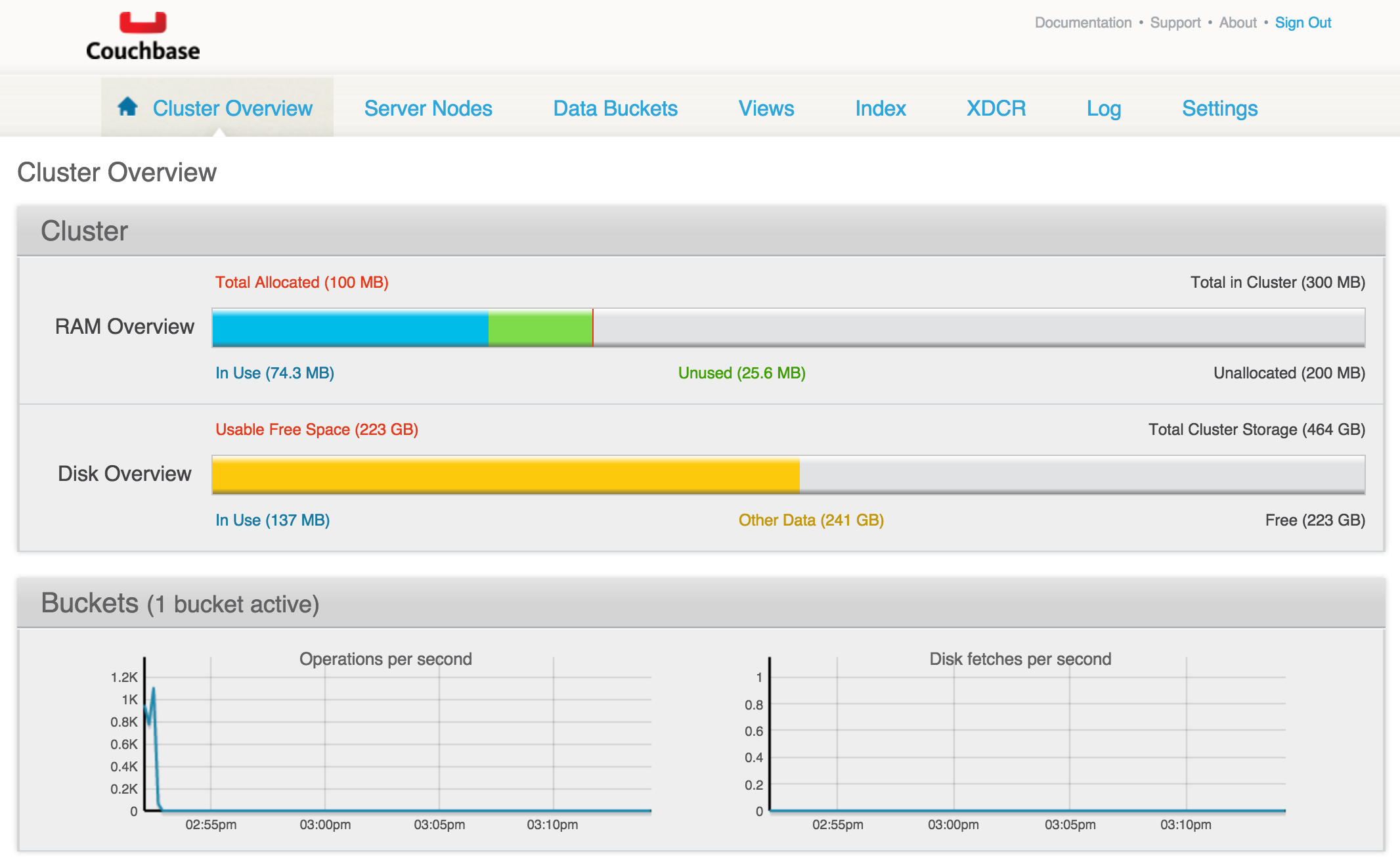
Cluster overview can be seen at 192.168.99.100:8091:
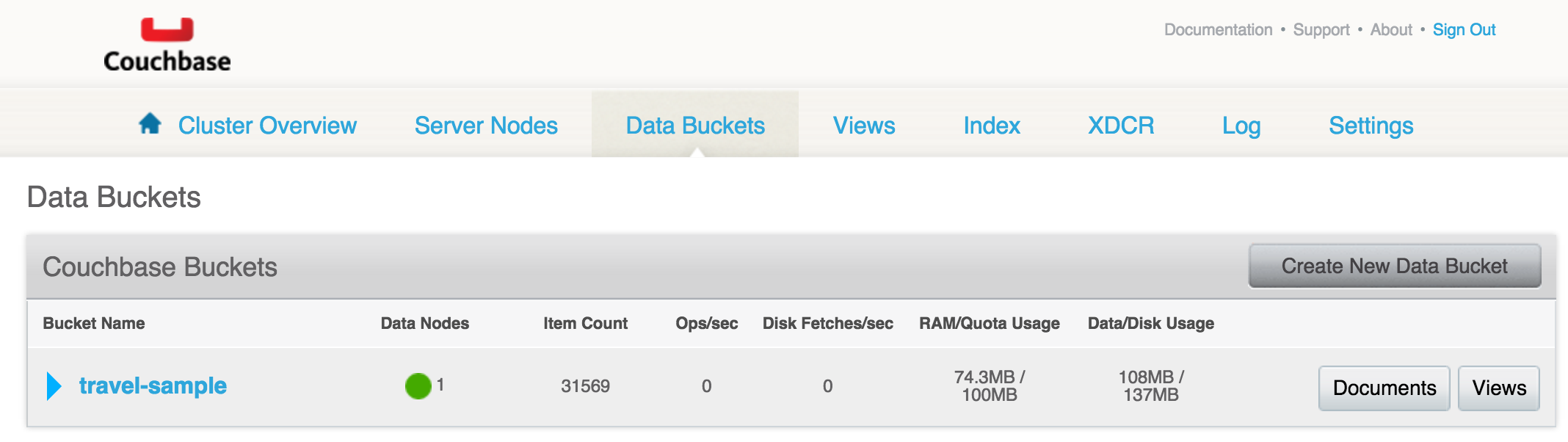
Data buckets can seen as:
Ask your questions at forums.couchbase.com, learn more about Couchbase REST API or read more in Couchbase 4 Docs.
A subsequent blog will show how all of these steps can be fully automated.
Enjoy!
The post Configure Couchbase Docker Container using REST API appeared first on Miles to go 3.0 ....